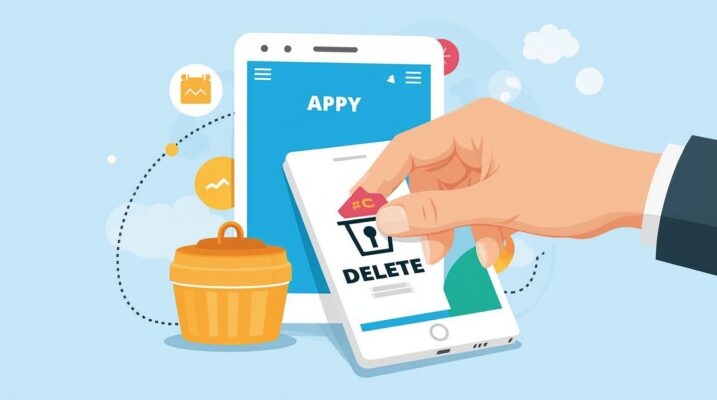
How Do i Delete an App on Appy Pie: Just follow these clear steps to get rid of an app from your Appy Pie account. Appy Pie is a popular app builder platform that allows users to create mobile applications without knowing how to code. built or no longer wish to handle. As your needs change, however, users may be in the situation of having an app they’ve created that they want to eliminate or leave behind.
Fortunately, Appy Pie has a built-in logging tool, allowing you to understand how these problems impact others, evaluate them against your budget, and allow clients make choices for themselves (meaning: manage the process more easily and efficiently). It is all very friendly and convenient indeed-just like life should be!
Simply log in to your Appy Pie account, click on the dashboard listing where your apps are found. Locate the app that needs removing, right-click on the settings gear icon, and choose remove an app. When you confirm this action, the app is permanently removed. Be sure to back up anything important before proceeding, as deleted items are lost forever.
Why Would You Want to Delete an App on Appy Pie?
Before diving into the process, it’s important to understand the reasons why you might want to delete an app. Here are some common scenarios:
1. Outdated App
If your app is no longer relevant to your business or project, deleting it can help keep your account clean and organized.
2. Unused Apps
If you’ve created a test app or a prototype that you no longer need, it’s best to delete it so it doesn’t take up unnecessary space in your dashboard.
3. Streamlining Your Account
Deleting apps that are no longer in use can make it easier to focus on the apps that matter, especially if you’re managing multiple apps.
Step-by-Step Guide to Deleting an App on Appy Pie
Deleting an app on Appy Pie can be done directly from your account’s dashboard. Here’s a breakdown of the steps you need to follow:
1. Log in to Your Appy Pie Account
To begin, visit the Appy Pie website and log in to your account using your credentials. You’ll be directed to your dashboard, where all the apps you’ve created are listed.
2. Locate the App You Want to Delete
In your dashboard, scroll through the list of your apps and find the one you wish to delete. You can also search for it by name if you have several apps on your account.
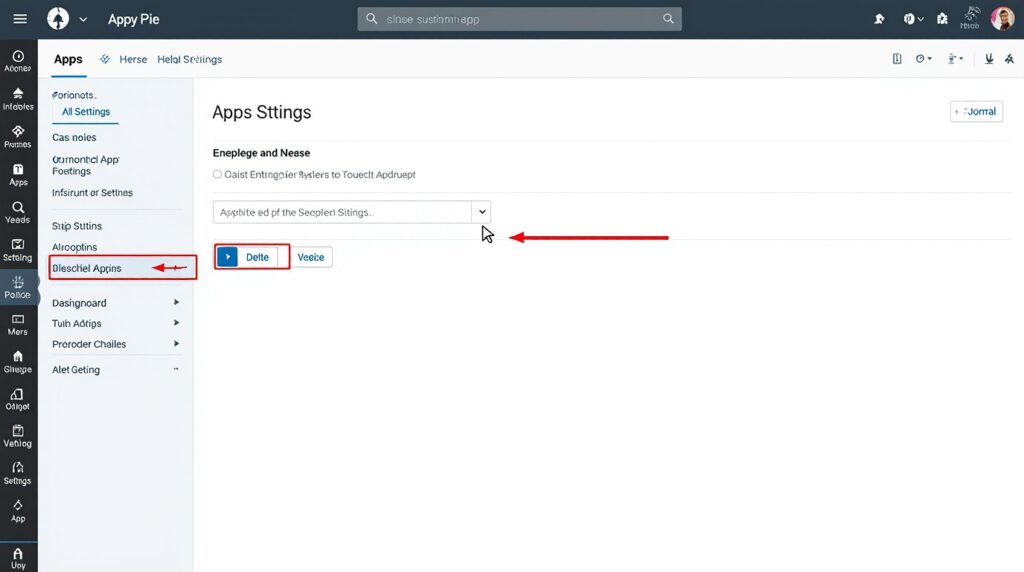
3. Access the Settings Menu
Once you have found the app you want to delete, click on the app to display its details. Seek out the settings option, often in app settings or more, and tap the settings icon. This will bring up a menu listing things you may want to control about the app.
4. Select the “Delete” Option
In the settings menu, find an option that says “Delete” or “Remove.” This will be worded differently depending on the variation platform, but the statement should be clear. Click on the “Delete” button to proceed.
5. Confirm Deletion
After you’ve clicked ‘Delete’ from the drop-down menu next to the name of your app, Appy Pie will remind you with a warning message: Are you sure? Are you certain that no essential information is stored in this app that could be lost if deleted prematurely? If you are satisfied, please press the “Confirm” button in order to permanently remove this application from your account now that everything within it has been thoroughly backed up (and then some).
Important Considerations Before Deleting an App
Before deleting an app on Appy Pie, there are a few important things to keep in mind:
1. Backup Your Data
Deleting an app is permanent and cannot be reversed. If this app has important data you may want later on, be sure to back it up before removing it. Appy Pie offers some options for exporting an app’s data into different formats, so take the opportunity and make good use of this feature!
2. App Deletion is Irreversible
Once you confirm the removal, the app will be permanently removed from your user account area, and this means that neither you nor anybody else can access it anymore. So please double-check completely before deleting this application.
3. Check for Active Subscriptions
Make sure that you do not have an active subscription to the app. To avoid unnecessary costs, cancel any ongoing billing before deletion. Removing the app will not automatically terminate your subscription, and you may still be billed for costs incurred. Please uncheck the unwanted charges from your payment settings.
How to Manage Multiple Apps in Your Appy Pie Account
If you have several apps in your Appy Pie account, managing them efficiently can save you time and reduce clutter. Here are a few tips for handling multiple apps:
1. Organize Your Apps
Appy Pie allows you to create different categories for your apps. By categorizing your apps based on their purpose (e.g., personal, business, test apps), you can easily locate the apps you want to manage or delete.
2. Use the Archive Feature
If you are unsure about deleting a piece of software permanently, why not try Appy Pie’s “Archive” feature? This way, you can remove it from your main dashboard without actually erasing the application. If you really need to use that application way down the line, say five years later, you come back to work on something long unfinished and are in dire need of some important data from an old project, contact us, and we will be happy to help you restore archived apps.
3. Review App Performance Regularly
It is important to regularly review the performance of your apps and the level of engagement they participate in. If an app does not perform well or its content has become outdated, then it is time to consider removing it. Appy Pie gives you analytics for every app so that you can see which ones need attention and which ones should be retired.
Final Thoughts on Deleting an App on Appy Pie
Whether you’re deleting unused apps, removing outdated projects, or just freeing up space, it’s essential to follow these instructions. This way, you don’t lose any valuable data. Don’t forget to back up your app data, cancel any active subscriptions, and check that the app has actually been deleted.
By following this guide, your apps will be manageable. And should any errors appear in these particularly nasty cases of typo or mistranslation, they are indeed invisible after first publication.
Frequently Asked Questions (FAQs)
1. How do I log in to my Appy Pie account?
To log in to your Appy Pie account, go to the Appy Pie website and enter your login credentials (email and password) in the login section. After entering the information, click “Login” to access your account.
2. Can I recover my app after deleting it?
No, once an app is deleted on Appy Pie, the process is permanent and irreversible. Ensure you’ve backed up all important data before proceeding with the deletion.
3. Will deleting an app remove it from the App Store or Google Play?
No, deleting an app from Appy Pie does not automatically remove it from the app stores. You will need to manually remove the app from the App Store, Google Play, or other platforms where the app is published.
4. How can I cancel my subscription before deleting the app?
Before deleting your app, ensure you visit your billing section in Appy Pie to cancel any active subscriptions related to the app. This will prevent you from being charged for the service after the app is deleted.
5. Is there a way to archive my app instead of deleting it?
Yes, Appy Pie allows you to archive apps. Archiving the app removes it from the dashboard but doesn’t delete it permanently. You can restore the app later if needed.